Oxlab Logo
Get Started

Install Taskion on Your Server

Installing Taskion on your local server is simple. Follow our guide and verify that everything works correctly.
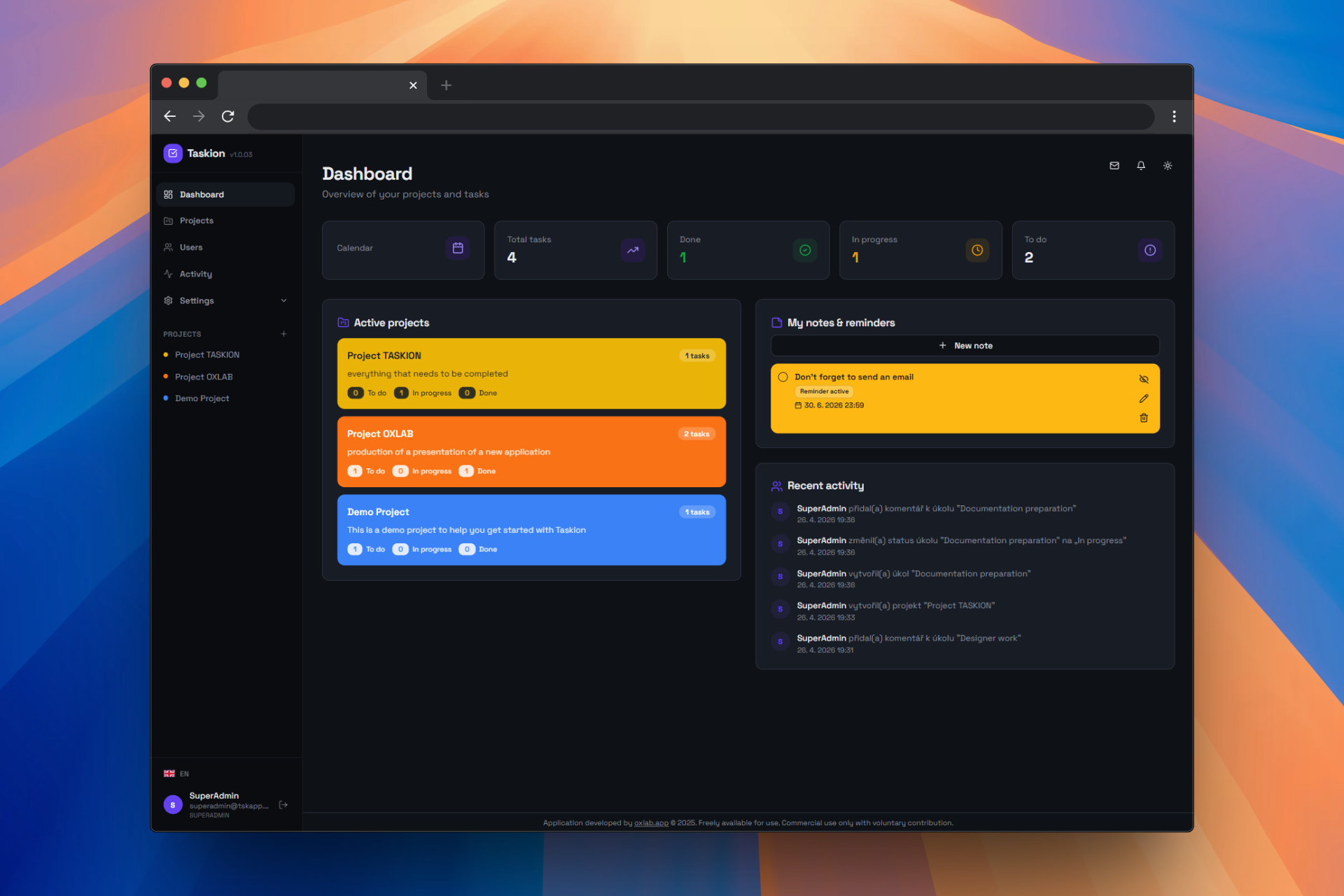
  • • Installation to localhost/taskion or to the root folder of your web hosting
  • • Verification of all PHP extensions
  • • Database connection check
  • • File permissions verification
  • • Functionality testing
Taskion installation

Installation Steps on WAMP Server

1

Download and Extract

Download Taskion and copy the contents to the root folder of your project.

On Local WAMP Server:

  • • Download the ZIP file from our website
  • • Extract it to your computer
  • • Copy the extracted folder contents to: C:\wamp64\www\taskion
  • • In the root folder you should see: assets, api, install, index.html
  • • Verify that all files are in place

On Web Hosting:

  • • Download the ZIP file from our website
  • • Extract it to your computer
  • • Connect to your web hosting via FTP (e.g., FileZilla)
  • • Upload the contents directly to the root directory: public_html or www
  • • In the root directory you should see: assets, api, install, index.html
  • • Verify that all files are in place
2

Run Installation Wizard

Open the installation wizard in your browser.

On Local WAMP Server:

  • • Start WAMP server (click the icon in the system tray)
  • • Open your browser and go to: localhost/taskion/install
  • • You should see the installation wizard
  • • Follow the on-screen instructions

On Web Hosting:

  • • Open your browser and go to: https://your-domain.com/install
  • • Replace your-domain.com with your actual domain
  • • You should see the installation wizard
  • • Follow the on-screen instructions
3

Verify PHP Extensions

The wizard will verify that you have all required PHP extensions.

  • PDO - for database operations
  • PDO MySQL - for MySQL database
  • cURL - for HTTP requests
  • JSON - for JSON data handling
  • • If something is missing, the wizard will alert you
4

Configure Database

Configure your MySQL database connection.

On Local WAMP Server:

  • Host: localhost
  • User: root (default)
  • Password: (usually empty)
  • Database: taskion (will be created)
  • • The wizard will test the connection

On Web Hosting:

  • Host: Get from your provider (e.g., localhost, mysql.your-domain.com)
  • User: Assigned user from your provider
  • Password: Database password from your provider
  • Database: Database name from your provider
  • • The wizard will test the connection
5

Verify File Permissions

The wizard will verify that files have correct permissions.

  • • Folder api/data - must be writable
  • • Folder api/logs - must be writable
  • • File api/config.php - must be readable
  • • If there are issues, the wizard will alert you
6

Testing and Completion

The wizard will test all functions and complete the installation.

  • • Testing database connection
  • • Creating tables in database
  • • Testing API connection
  • • Creating administrator account
  • • Redirecting to login page

System Requirements

PHP

Taskion requires PHP version 7.4 or higher.

  • • WAMP server includes PHP
  • • Verify version in WAMP panel
  • • Required extensions: PDO, JSON, cURL

MySQL

Taskion requires a MySQL database.

  • • WAMP server includes MySQL
  • • Default user: root
  • • Default password: (empty)

Disk and Memory

Minimum hardware requirements.

  • • Disk: at least 500 MB
  • • RAM: at least 1 GB
  • • Recommended: 2 GB RAM

Troubleshooting

Error: Database Connection Not Working

The installation wizard reports an error when connecting to the MySQL database.

Solution:

  • 1. Verify that WAMP server is running (MySQL service must be running)
  • 2. Check the credentials in the file api/.env
  • 3. Verify: DB_HOST, DB_USER, DB_PASSWORD
  • 4. Default values: Host=localhost, User=root, Password=(empty)
  • 5. If you changed the MySQL password, update it in .env
  • 6. Run the installation wizard again

Error: API Connection Not Working

The application cannot connect to the API server.

Solution:

  • 1. Open the file config.js in a text editor
  • 2. Find the line: apiUrl: 'https://demotaskion.oxlab.app/api'
  • 3. Change the URL to your installation: apiUrl: 'http://localhost/taskion/api' or apiUrl: 'https://your-domain.com/api'
  • 4. IMPORTANT: URL must not end with a slash!
  • 5. Save the file (Ctrl+S)
  • 6. Clear browser cache (Ctrl+Shift+Delete)
  • 7. Refresh the page (F5) and try again

Example of correct configuration:

window.TASKION_CONFIG = {
  apiUrl: 'http://localhost/taskion/api',
  version: '1.0.3',
  isDemo: false
};

Error: Page Not Loading or Empty

The application displays but doesn't work correctly or content is not showing.

Solution:

  • 1. Open browser console (F12) and check for errors
  • 2. Check the file api/.env - verify all settings
  • 3. Verify that all files are correctly extracted (assets, api, install, index.html, config.js)
  • 4. Check that PHP extensions are enabled (PDO, JSON, cURL)
  • 5. Clear browser cache (Ctrl+Shift+Delete) and try again
  • 6. Try accessing localhost/taskion/api/status - should return JSON

How to Edit Settings in .env File

The file api/.env contains all important settings.

Steps:

  • 1. Open the folder C:\wamp64\www\taskion\api
  • 2. Find the file .env (hidden file)
  • 3. Open it in Notepad or VS Code
  • 4. Edit the required values (DB_HOST, DB_USER, DB_PASSWORD, API_URL)
  • 5. Save the file (Ctrl+S)
  • 6. Restart WAMP server
  • 7. Refresh the page in your browser (F5)

Need Help?

If you have any questions or problems with the installation, please don't hesitate to contact us.

❤️ Do you like Taskion by OXLAB?

If you find Taskion useful, please share it with your friends and colleagues on social media. Your support helps us grow and improve the platform!

Thank you for helping us spread the word about Taskion! 🚀